NestMaxx 1.1: Reuse Skeleton Sheets and Nest on Any Sheet Shape
What is a skeleton sheet?
When you cut parts out of a sheet, the material left behind is called the skeleton. It is the frame of metal that remains around and between the holes. Some shops call it the lattice, because the thin strips between the holes look like one. Those strips have their own name too: the web.
A few related words come up in every cutting shop:
- Remnant, or drop: a leftover piece that is big enough to use again.
- Offcut, or cutoff: a piece trimmed off a sheet. It is often an odd shape, and shops use the word for both useful pieces and scrap.
- Remnant nesting: placing new parts onto leftover material instead of a fresh sheet.
Most skeletons go straight to the scrap bin, even when there is good material left on them. The reason is simple: most nesting tools only understand a clean rectangle.
What is new in NestMaxx 1.1
NestMaxx 1.1 is available today, and it removes that limit. Your sheet no longer has to be a rectangle.
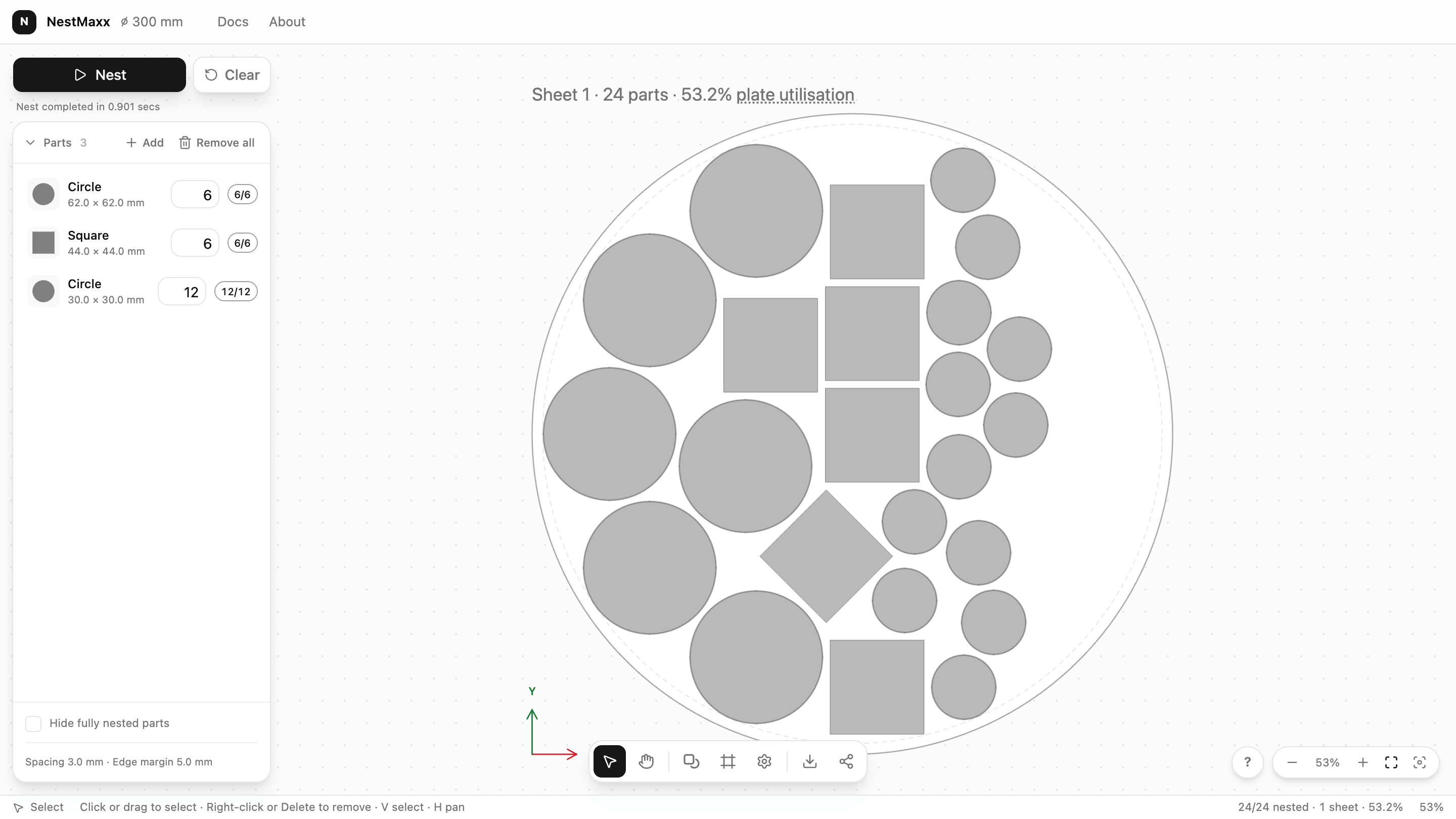
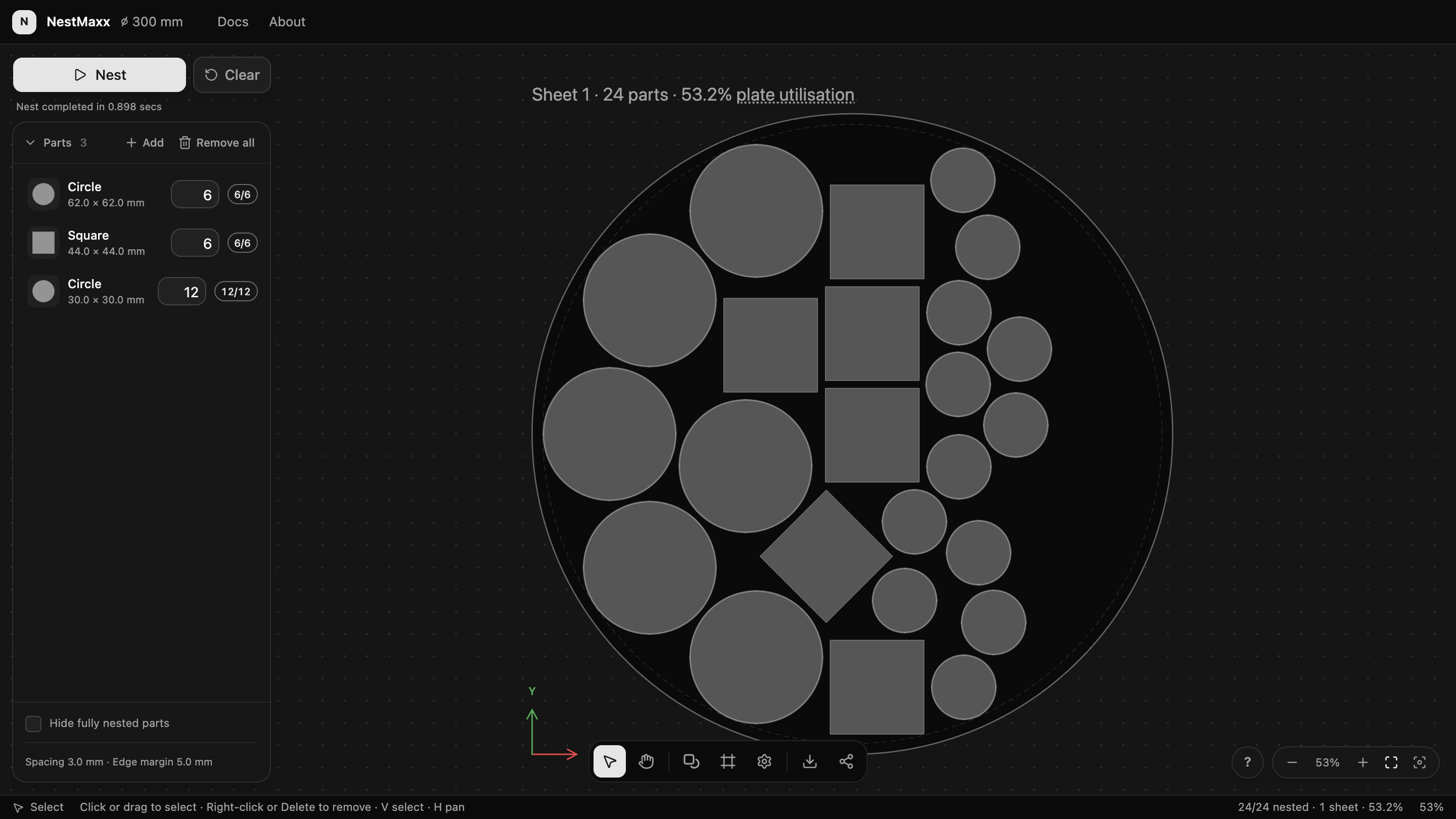
There are two new features. First, a sheet can be any shape. Pick Circle for a round blank, or load the outline of a remnant or odd-shaped offcut from a DXF file. Parts then nest inside the real edge. Second, you can export the skeleton that remains after a job and load it again later, so new parts are nested around the old cut-outs. In NestMaxx, a saved skeleton is called a leftover sheet.
Pick your sheet shape
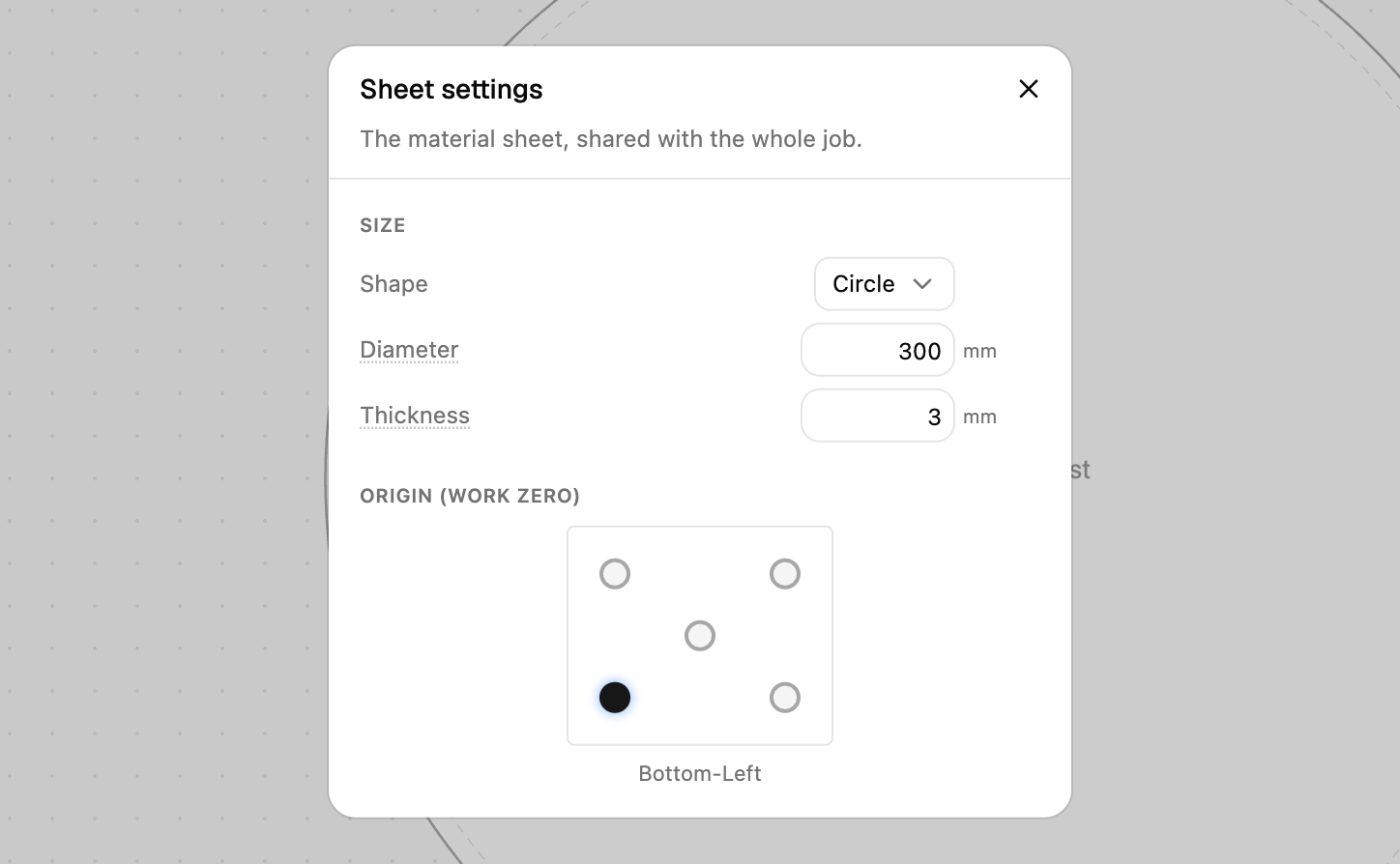
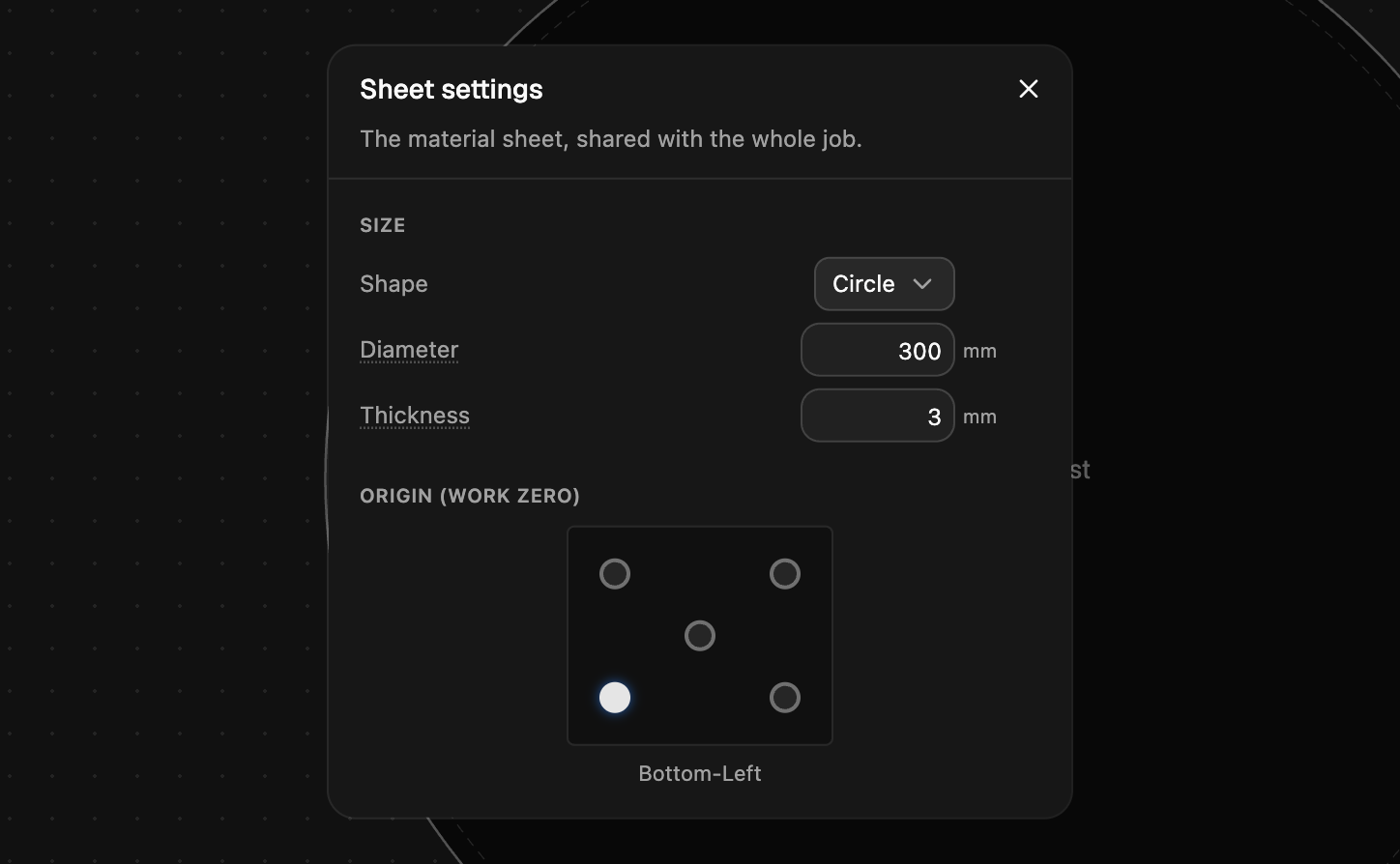
Open Sheet settings. For a round blank, set Shape to Circle and type the diameter. For any other shape, set Shape to From a drawing (DXF) and press Load sheet from DXF. NestMaxx treats the largest closed outline in the file as the edge of the sheet. Any closed outlines inside it are treated as holes that have already been cut.
A sheet from a drawing takes its size from the drawing, so the width and height fields lock. Parts are placed only inside the outline, and they keep your edge margin away from it.
Save the skeleton and use it again
A skeleton still holds usable material in its web and around its edges. Until now, there was no simple way to nest onto it.
After any nest, open Export and choose Leftover sheet (DXF). The file contains the edge of the sheet and the outline of every part that was cut from it. In other words, it is a drawing of the skeleton.
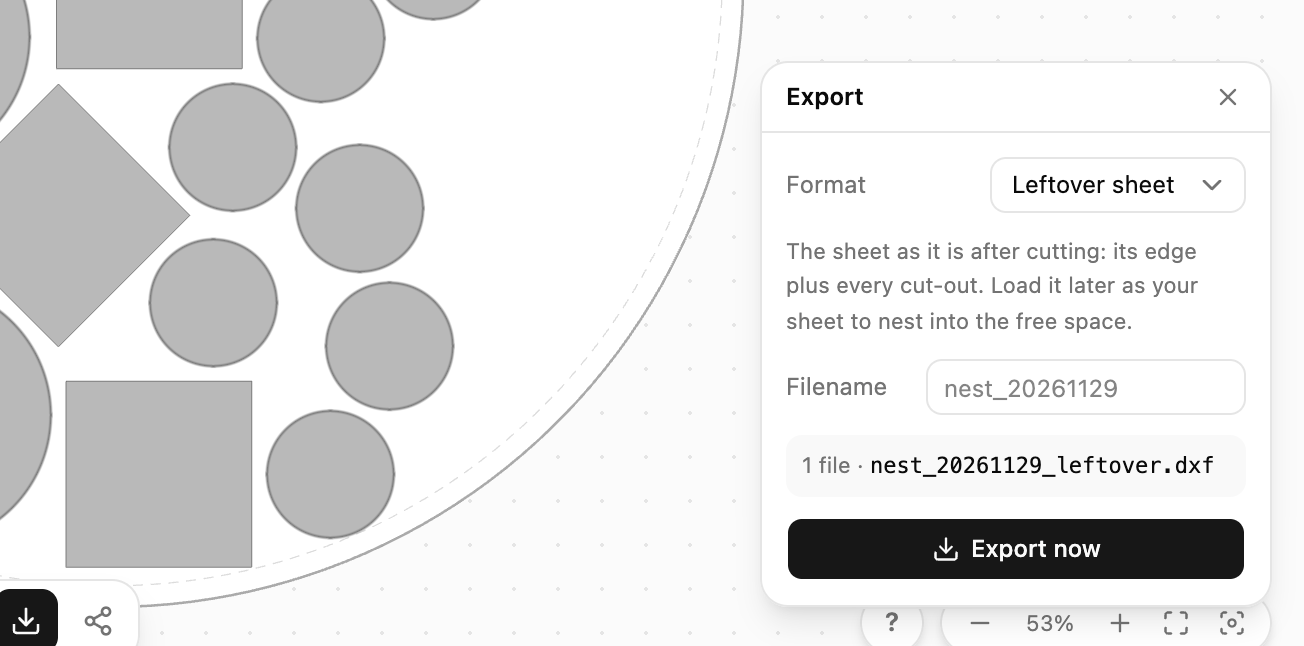
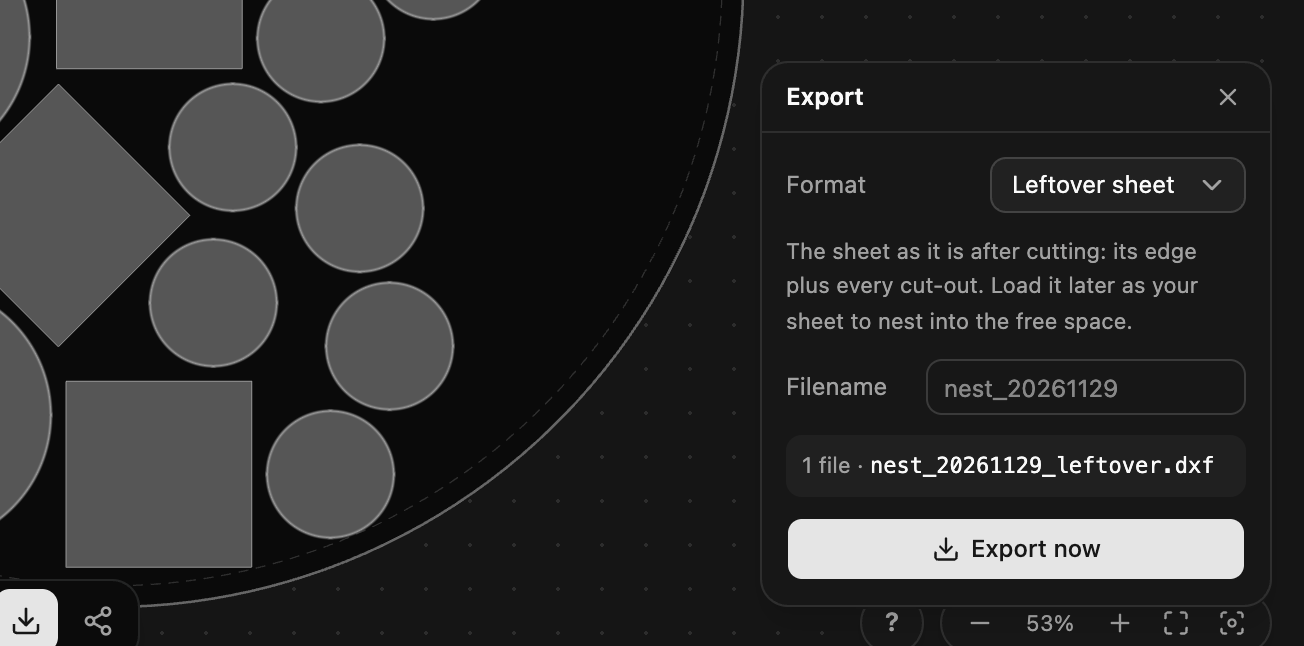
When the next small job arrives, load that file as your sheet. This is remnant nesting without the guesswork. The old cut-outs come back as holes, and your new parts are nested into the free material.
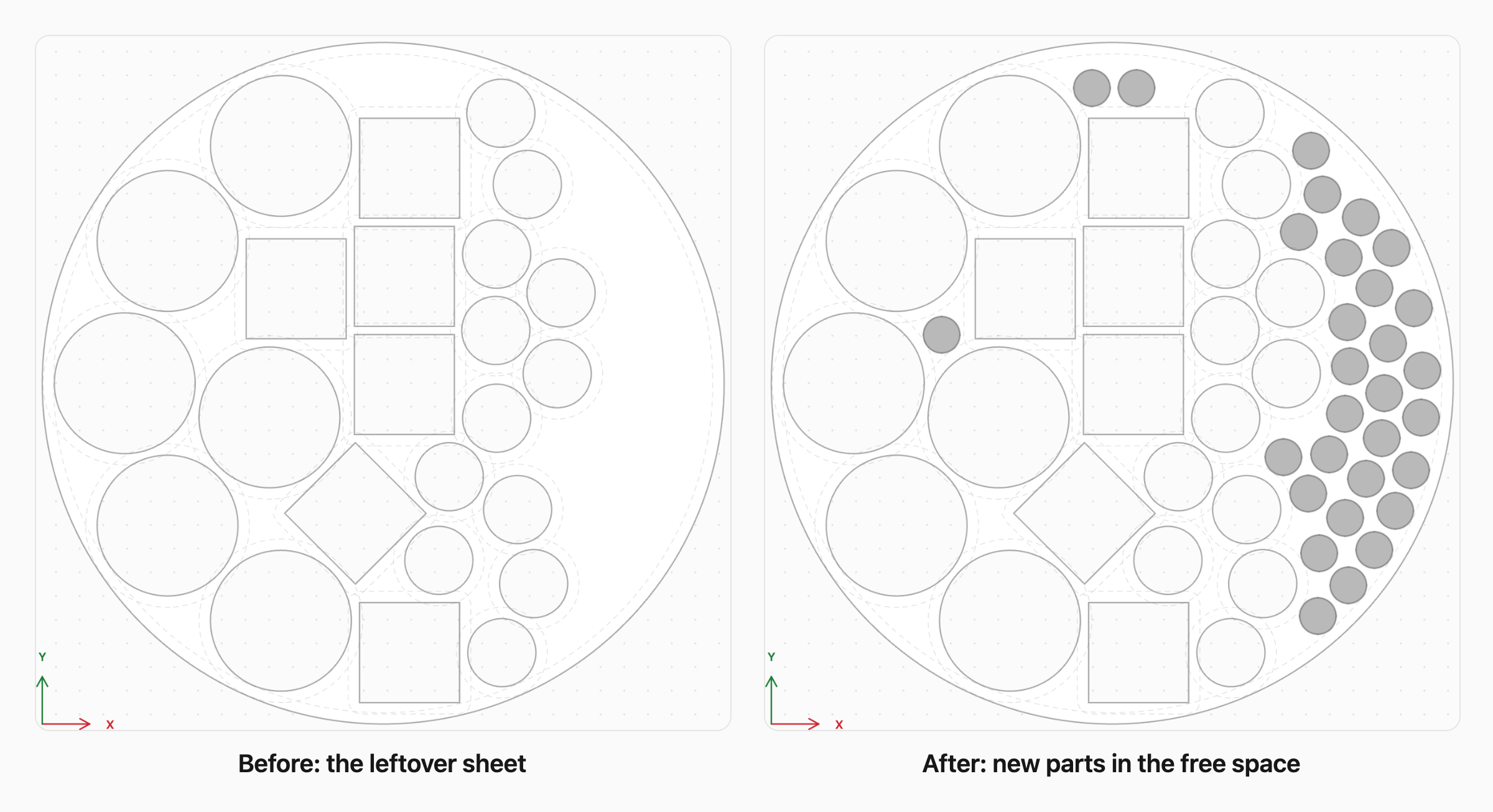
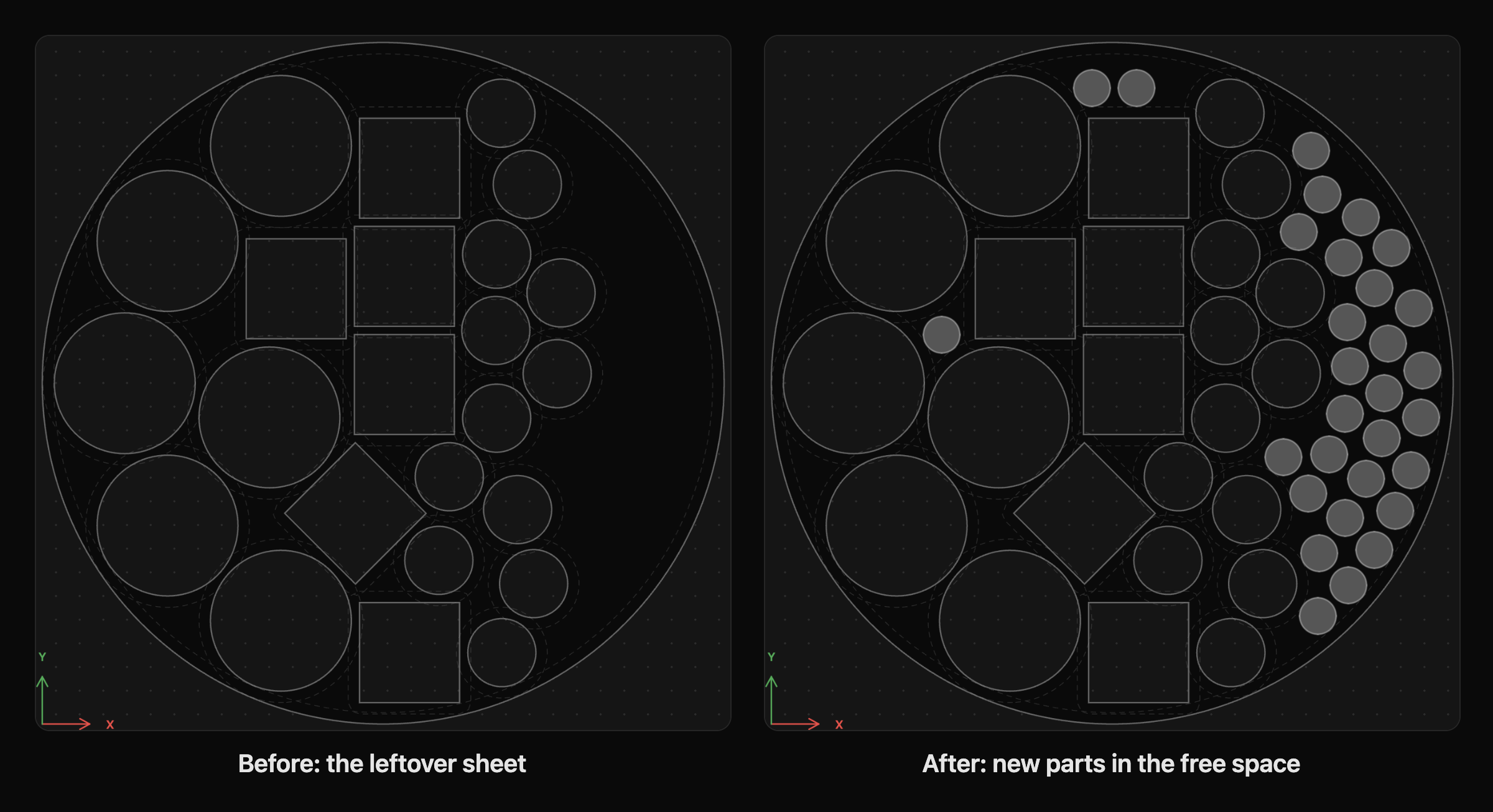
In this example, 30 new parts fit on a skeleton that would otherwise have gone to scrap.
Common questions
Is a leftover sheet the same as a skeleton?
Yes. Skeleton, lattice, remnant and leftover sheet are all names for material that is left after cutting. NestMaxx uses “leftover sheet” for the file you save and load again.
What kind of file can I load as a sheet?
A DXF file. Draw the outline of your material in any CAD program, save it as a DXF, and load it. A leftover sheet exported from NestMaxx is already in the right format.
Does it work with inches?
Yes. A file with no units is read as millimeters. If your file was drawn in inches, check File is in inches after you load it.
Why is a leftover sheet limited to one sheet?
A skeleton is one physical piece of material. If some parts do not fit, NestMaxx reports them as not placed, instead of putting them on a second copy that does not exist. You can raise the limit if you have several identical pieces.
Do the saved holes allow for the width of the cut?
The holes are saved at the exact size of the parts. Set an edge margin that covers your cut width, and new parts will stay clear of every old hole.
Learn more
For the full steps, read Sheet Shapes and Leftover Sheets in the documentation. The complete list of changes is in the Release Notes.