Collision Flags
When two parts sit too close together, NestMaxx warns you by outlining them. This page explains what that warning means and how to clear it.
The red outline
If parts end up closer than your chosen spacing allows, they are flagged with a red outline. It is a warning that, as arranged, those parts do not leave enough of a gap between them to cut cleanly.
You will usually only see this after editing a layout by hand, because a fresh nest already respects the spacing. Dragging a part too close to its neighbour, for example, can trip the flag. See Moving and Rotating Parts.
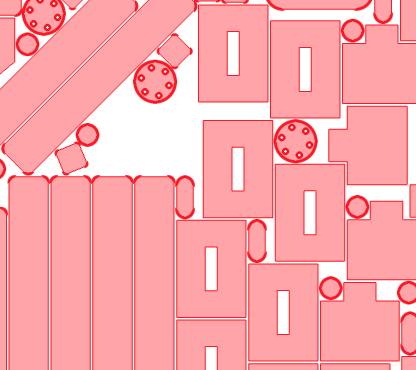
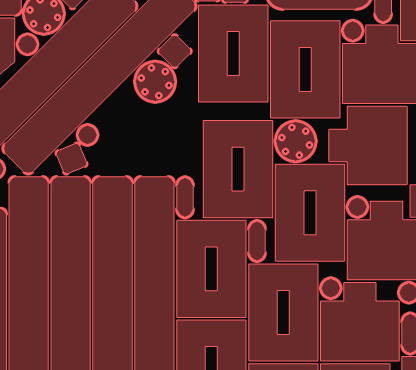
What counts as too close
The flag is based on the spacing you set, not on the parts physically overlapping. Two parts are flagged when the gap between them is smaller than the spacing, so the warning appears before they actually touch. This is deliberate: the spacing is there to leave room for the cut and for handling. See Spacing and Clearance.
A part sitting inside the hole of a larger part is not a collision. NestMaxx understands holes, so nesting a small part into a hole is allowed and is not flagged. See Filling Holes.
While a nest is running
While NestMaxx is packing a sheet, the layout is still changing moment to moment, so collision flags are not shown during that time. Once the nest finishes, any parts that are too close are outlined.
Clearing a flag
To clear a red outline, give the parts more room:
- Move a part away from its neighbour until the gap is large enough. NestMaxx will not let a manual move or rotate push a part into another one’s space, so nudging it clear is straightforward.
- Run the nest again to let NestMaxx repack everything with the proper spacing. See Running a Nest.
- Increase the spacing if you want a larger guaranteed gap everywhere, then re-nest.