The Shape Library
The fastest way to get parts onto a sheet is the built-in shape library: a set of ready-made parametric shapes you size to your needs. No drawing required.
Opening the library
Press Add parts 
 in the dock to open the picker. It offers four sources:
- From shape library - the parametric shapes described on this page.
- From built-in CAD - draft a part yourself with lines, rectangles and circles.
- Import CAD files - bring in a DXF drawing. See Importing CAD.
- Import vector files - bring in an SVG drawing. See Importing CAD.
Choose From shape library to see the shapes.
Picking and sizing a shape
The library is a grid of 40 shapes, each numbered. They range from simple outlines (Square, Circle, Triangle) through plates with notches and chamfers, to compound parts with holes (Ring, Flange disc, Plate with central hole). For the complete list and what each one is called, see the Shape Reference.
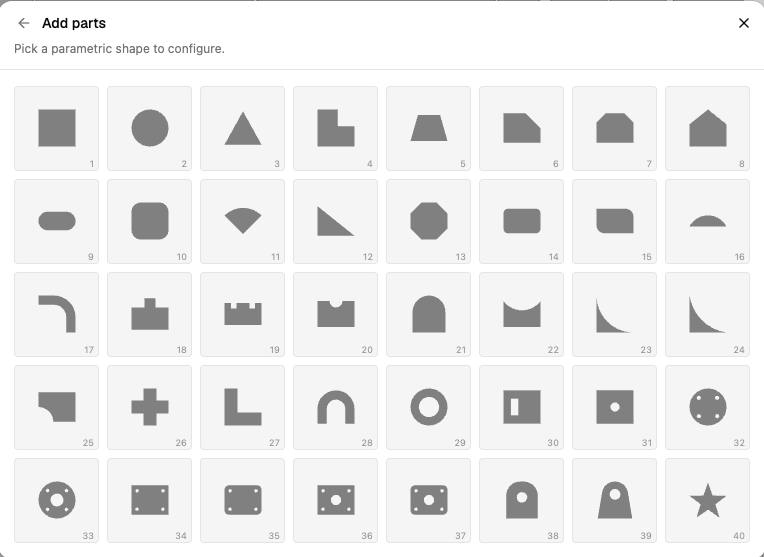
Pick a shape and NestMaxx shows a configure screen:
- Set the parameters. Every shape has its own fields, for example Side and Corner radius for a rounded square, or Outer diameter and Inner diameter for a ring. A live preview updates as you type. If a combination of values cannot form a shape, NestMaxx shows Invalid parameters over the preview so you can adjust.
- Set the Quantity. Enter how many of this part you need.
- Press Add to part list.
The shape now appears in the Part List, ready to nest.
Changing a shape later
To change a shape after adding it, select the part and use Edit shape in the Part Properties panel. Note that changing a shape removes any copies already placed on the sheet, so run the nest again afterwards to refill them.