Running a Nest
Nesting is the heart of NestMaxx: it takes the parts in your list and packs them onto the sheet for you. This page covers running a nest and the settings you confirm each time.
The Quick Nest dialog
Press Nest 
 (top left) and the Quick Nest settings dialog opens. It gathers the common settings in one place so you can confirm them before every run:
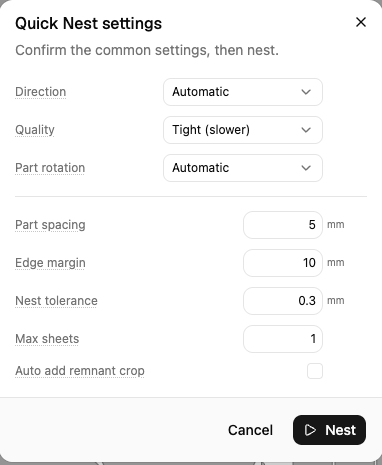
- Direction - which way the nest grows across the sheet: Automatic, Horizontal (rows) or Vertical (columns). Automatic lets each attempt choose for itself.
- Quality - how hard NestMaxx searches for a tight layout: Fast, Balanced or Tight (slower). See Quality and Speed.
- Part rotation - which angles parts may turn to while packing. See Rotation and Orientation.
- Part spacing and Edge margin - the gaps kept between parts and around the sheet edge. See Spacing and Clearance.
- Nest tolerance - how finely curved parts are approximated for the packing search. Smaller packs curvy parts tighter but nests more slowly. The cut itself always follows the exact curve.
- Max sheets - the most sheets NestMaxx may fill. Parts that do not fit within this many are reported as unplaced rather than opening yet another sheet.
- Auto add remnant crop - after nesting, add a single straight cut that frees the unused part of the sheet as a clean offcut you can rack and reuse.
The defaults are sensible, so for a normal run you can simply confirm them. When you are ready, press Nest in the dialog to start.
While it runs
NestMaxx packs the sheet in front of you, and parts appear as they are placed. For a Tight nest with many parts this can take a while, because it is trying many layouts to find a good one. You will see progress such as the current pass and a final “Nest completed in” time when it is done.
If a run is taking longer than you want, press Cancel to stop it and keep the layout reached so far.
After a nest
Once the nest finishes you can:
- Read the result - see how full the sheet is and whether everything fit. See Reading the Result.
- Adjust settings and re-nest - change quality, spacing or rotation and press Nest again to repack.
- Edit by hand - nudge individual parts. See Moving and Rotating Parts.
- Clear - the Clear button removes the current placements so you can start the layout again.