The Workspace
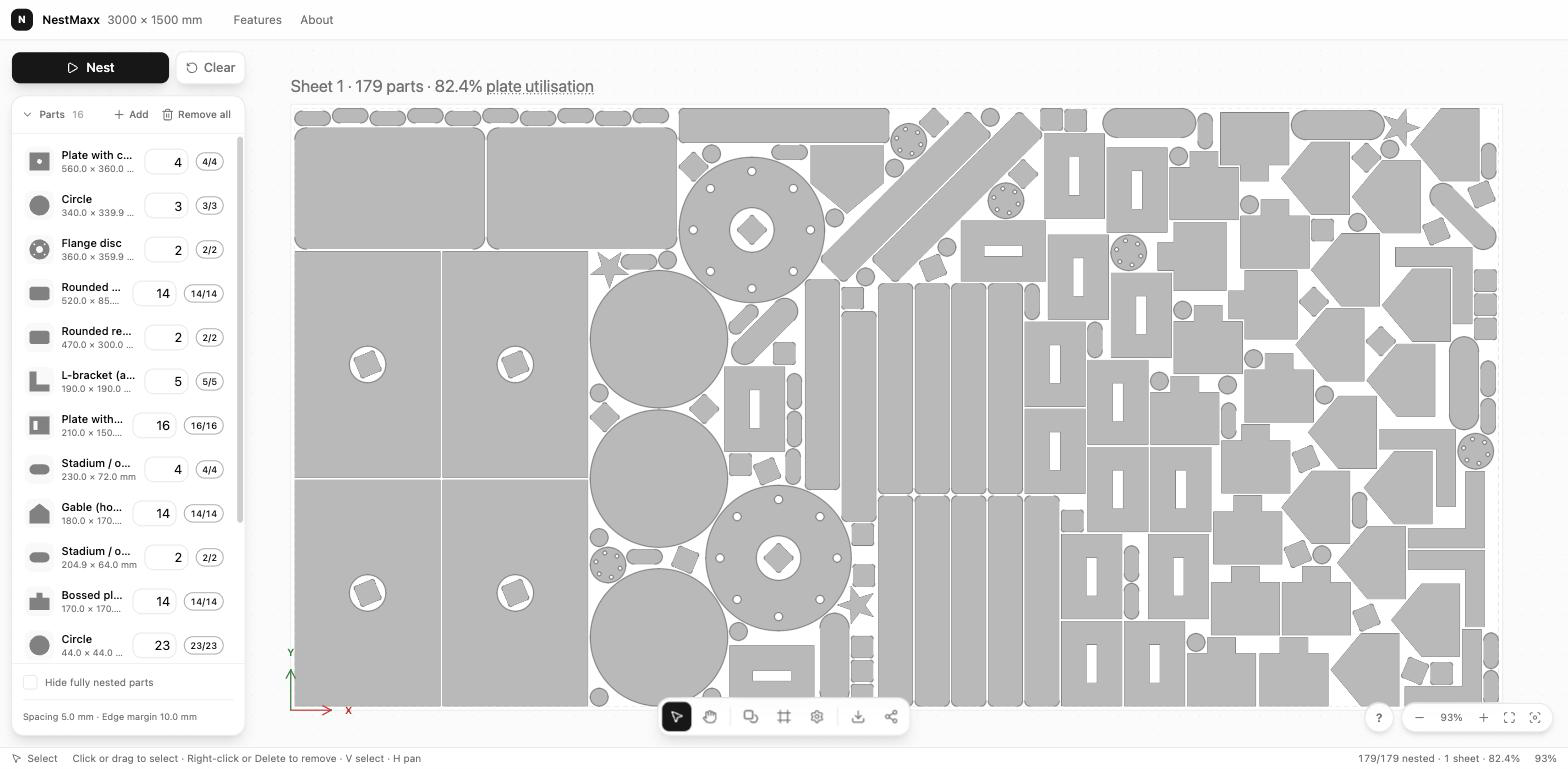
The NestMaxx workspace is built around a single large canvas showing your sheet, with tools and information arranged around it. This page names each area, and each button, so the rest of the documentation can point you straight to it.
The canvas
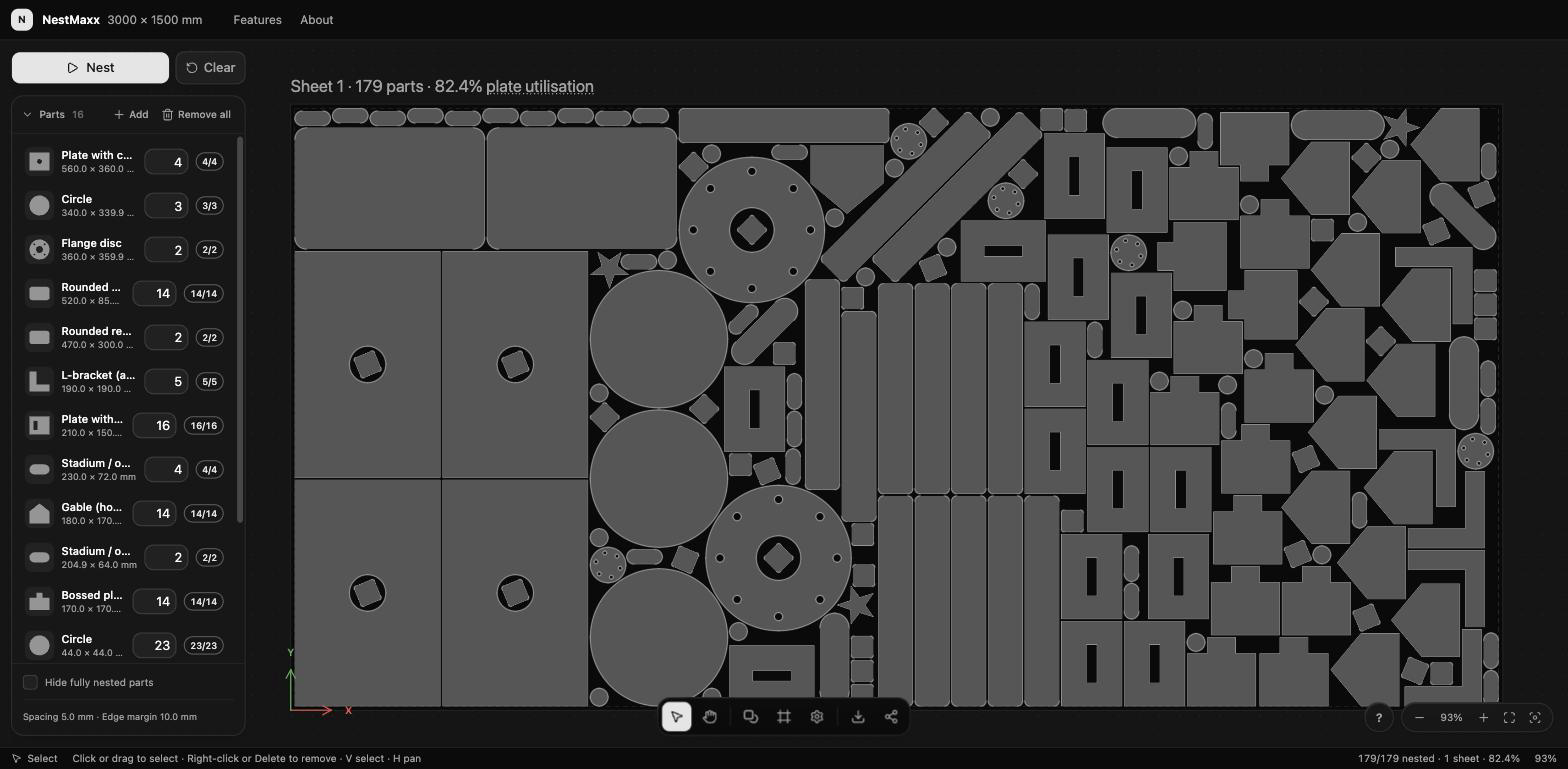
The canvas is the large area in the centre. It shows your sheet as a rectangle, with your parts arranged on it. This is where you see the result of a nest and where you edit the layout by hand.
You can zoom and pan the canvas freely to inspect the packing. See Navigating the Canvas for every way to move around.
Nest and Clear
At the top left are the two main actions:
- Nest

 - packs your parts onto the sheet. This is the button you press most.
 - Clear - removes the current placements so you can start the layout again.
The dock
Along the bottom of the canvas is the dock, a row of tools. Throughout these docs, an instruction like Dock > Export means “click this icon in the dock”:
- Select

 - pick and drag parts (shortcut
 V). - Pan

 - drag to move the view (shortcut
 H). - Add parts

 - open the picker to add shapes or import files.
 - Sheet settings

 - the sheet size and origin.
 - Settings

 - units, theme, language and nesting defaults.
 - Export

 - save the layout as a DXF or SVG file.
 - Share

 - post a snapshot image of the nest.
The part list
On the left is the part list: every part in the current job, with the quantity of each. Use Add 
 to add more, set how many of a part you need, select a part to edit, and remove parts you no longer want. See The Part List.
Properties
When you select a part, its properties appear on the right. Here you read and change the details of that part, such as its dimensions. See Part Properties.
The sheet and origin
Dock > Sheet settings controls the size of your material and where its origin sits. The origin is the reference point that positions your parts on the material; it matters when you take the layout to a machine. See Sheet Size and Material Origin.
Status information
Along the bottom you will find at-a-glance information about the current layout, such as how much of the sheet is used and how many sheets the job needs. Beside the canvas, the ? button 
 opens the canvas-controls help. Reading the Result explains what the numbers mean.
Next steps
- Ready to make something? Follow the Quick Start.
- Want the underlying ideas? Read Core Concepts.