Exporting DXF and SVG
When your layout is ready, export it as a file to open in your machine software or drawing package. NestMaxx exports the nested layout as DXF or SVG.
Opening export
Open Dock > Export 
 (the download icon at the bottom of the canvas). The export panel appears with a few choices.
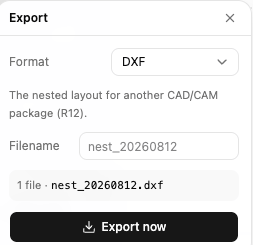
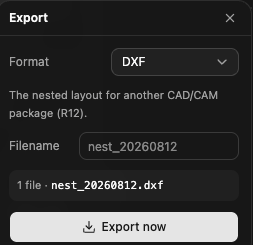
Choosing a format
- DXF - the nested layout for another CAD or CAM package, written as DXF R12. This is the default and the usual choice for taking the layout onward to cut. Curves are preserved, so circles come back as circles and arcs as arcs.
- SVG - the nested layout as a drawing. This is a picture of the layout, not a toolpath, and is handy for documentation or for opening in vector graphics tools.
Both export the true placed outlines of your parts, exactly as nested.
Naming and saving
- Filename - name the file. NestMaxx suggests a dated name such as
nest_20260810. - NestMaxx writes one file per nested sheet. A single-sheet job produces one file; a job across several sheets produces
name_1,name_2, and so on. - Zip into one file - when a job spans more than one sheet, tick this to download them together as a single zip.
- Press Export now to save.
The panel shows a small preview of how many files will be produced and an example filename before you export.
After exporting
The exported file contains the geometry of your layout, positioned on the sheet. Open it in your machine’s software to produce the cut. Because the file is the geometry rather than your editable NestMaxx job, keep exporting as your way to hand work off or to keep a backup. See Your Data and Privacy.
To check the file without opening CAD software, drop it into the free DXF viewer. To move between formats, use the DXF to SVG and SVG to DXF converters. All of these run on your device, with nothing uploaded.
To share a picture of the nest rather than a file, see Sharing Your Nest.